Identify what the base already includes
Record the measured area, any deductions and the source of the measurement. Label whether an allowance has already been included by a supplier, drawing or calculator. If the base already contains overage, adding the same percentage again can double-count it.
NIST’s SI guidance provides a reference for unit notation. Keep area quantities in compatible area units before dividing by package coverage. A length in metres is not itself an area in square metres; verify what each input represents.
Home Depot’s calculator hub offers different tools by project type. A project-specific tool is a starting point for reviewing its inputs and assumptions, not validation of every default or of the fictional product used here. Consult the actual product and installation requirements for your job.
Worked sensitivity: the package count changes at a threshold
Fictional planning example: the verified base is 12 m² and each hypothetical package covers 1.6 m². Compare user-chosen additions of 0%, 5% and 10% to that base. These are arithmetic scenarios, not recommended waste percentages for tile or any other material.
| Chosen addition | Added area | Adjusted quantity | Packages after rounding | Purchased coverage |
|---|---|---|---|---|
| 0% | 0 m² | 12 m² | ceil(12÷1.6)=8 | 12.8 m² |
| 5% | 0.6 m² | 12.6 m² | ceil(12.6÷1.6)=8 | 12.8 m² |
| 10% | 1.2 m² | 13.2 m² | ceil(13.2÷1.6)=9 | 14.4 m² |
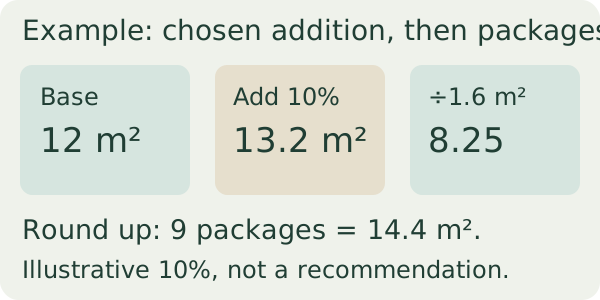
The 0% and 5% scenarios both require eight whole packages in this example. The 10% scenario crosses a package threshold and requires nine. Package surplus above the adjusted quantity is 0.8 m², 0.2 m² and 1.2 m² respectively; it is not the same field as the chosen addition.
A 10% addition to base uses 12×1.10. It is not the same as assuming 10% of the final purchased amount will be lost, which uses a different denominator. Write which meaning you intend instead of interchanging the formulas.
Verify layout and packaging before ordering
Check actual coverage per package, whether only whole packages are sold and whether coverage assumptions match the intended layout. Cuts, pattern direction, breakage, usable offcuts and spare-stock requirements may affect the chosen allowance; this worksheet does not determine them.
Do not round the base early and then add a percentage to an already rounded package quantity without stating that changed method. For this example the sequence is base, stated addition, adjusted area, package conversion, final upward rounding. Keep each intermediate quantity visible for review.
A material-area calculation is not a structural design, installation plan or complete price quote. Confirm relevant product instructions, site conditions and supplier information before committing an order. The room-measurement parent handles the source dimensions; this page handles allowance meaning and package thresholds.
BuildCue exposes assumptions for a planning estimate
BuildCue’s current listing includes trade calculators, dimensions, waste percentage, unit costs, line items and assumptions. AI project notes create a starter estimate that can be edited. Premium lists higher AI limits, saved-project workflows and quote export tools; exact current allowances should be checked in the app.
We publish BuildCue. Verify the meaning of the selected calculator’s units and outputs. This hypothetical package product and sensitivity table are separate from the app; no automatic supplier-pack lookup, exact product yield or CSV import is promised.
AI-parsed notes are a draft, not measured evidence. Keep the original dimensions and allowance decision available when reviewing an exported summary, and check that the allowance has not already been applied elsewhere.
If the method fits your task, explore BuildCue’s listed features on an iPhone. Check current features and plans before downloading.
See BuildCue for iOSDownload the free worksheet
Use the CSV in Numbers, Excel or a spreadsheet editor. Three fictional allowance scenarios and a blank row; not a recommended rate, product coverage or purchase instruction. Replace them with your own observations. The CSV is separate from the app and no email is required.
Questions answered
Is 10% always the right allowance?
No. It is only one chosen arithmetic scenario here; the actual product/layout needs verification.
Why do 0% and 5% give the same package count?
Both adjusted quantities fit within eight hypothetical 1.6 m² packages after upward rounding.
Is package surplus the same as waste allowance?
No. One is the chosen addition to base; the other is extra coverage caused by purchasing whole packages.
Continue with BuildCue on iOS
Use the App Store listing to check compatibility, privacy information and current plan terms. A free download may offer paid features.
Download BuildCue for iOSSources and product details
- NIST: Special Publication 811SI reference read October 20, 2026; no product-specific waste rate.
- Home Depot: Project calculatorsProject-specific calculator context read October 20, 2026; hypothetical package is not a retailer product claim.
- BuildCue on the App StoreCurrent US App Store product description; checked October 20, 2026.
Editorial method: primary guidance, a current Apple listing, an original worked example and an independent critique. No search ranking, install or outcome result is claimed.